Coming soon · macOS 15 or later · sold direct

Only your voice on every call. Then a whole studio for what you said.

Isolait — Studio starts as a microphone: pick Isolait Mic in Zoom, Teams, FaceTime or anything else that records you, and the other end hears you without the room. Then it keeps going — record what the call heard, transcribe, summarise and translate it, cut video by clicking words, bleep, caption, overlay, mix, pull out the best moments, make the thumbnail and publish. Plus Reaction recording, Import & Clean and Voyage live translation. All of it on your Mac.

Signed and notarised installer from isolait.com. 14-day trial of everything, including Isolait Mic; Isolait Studio Pro afterwards. 23 languages.

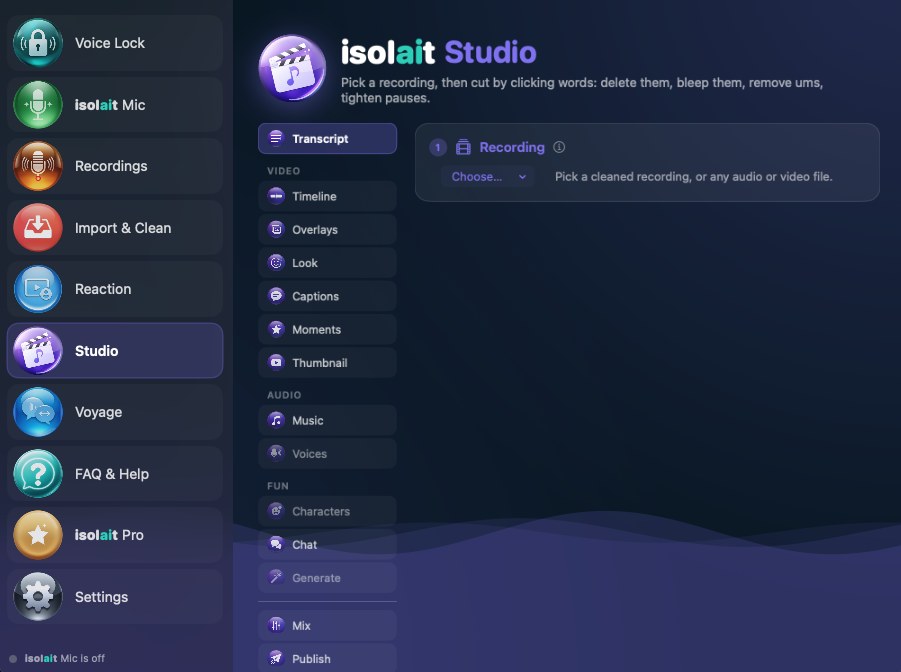
Isolait — Studio for Mac: the Studio workspace with Transcript, Timeline, Overlays, Look, Captions, Moments, Thumbnail, Music, Voices, Mix and Publish tools, and the sidebar listing Voice Lock, Isolait Mic, Recordings, Import & Clean, Reaction, Studio and Voyage
The sidebar, top to bottom

Ten rooms in one app

Every entry in the sidebar is its own tool. Here is what each one does, in the order you'll find them.

1 · Voice Lock

Only the voice you choose gets through. Everyone and everything else is muted.

Set up once

About 15 seconds of talking

Open Voice Lock, tap Set up my voice, talk normally, give it a name. From then on Voice Lock mutes everything that isn't that voice — other people, a TV, a video playing in another tab.

See it working

Voice ring, match meter, gate

A live ring shows your level and the gate; the Voice match meter shows how confidently it hears you. Your voice should sit well above the gate and other voices well below it — if not, re-record in the room and with the mic you actually use.

Saved voices

Several voices, one active

Save yours, a co-host, an interviewee. Pick which one Voice Lock keeps with the circle beside its name; rename, re-record or delete from the ⋯ menu. An existing single profile carries over as “My voice”.

Honest about the edge

Three seconds to be sure

After a pause Voice Lock needs about three seconds of speech to be confident it's you; the first moment can be softened before it opens fully. That trade-off is what keeps false matches out.

2 · Isolait Mic

A clean microphone for Zoom, Teams, FaceTime, Meet and anything else that records you

Isolait installs a small audio driver that appears on your Mac as a microphone called Isolait Mic. Choose it in your call app and everything you say passes through Voice Lock before it leaves.

Works anywhere a mic does

Any app that lets you choose a microphone

Zoom, Microsoft Teams, FaceTime, Google Meet in the browser, Discord, Slack huddles, Webex, OBS and more. Nothing to install inside the call app.

Knows when you're on a call

“Zoom is open. Turn on Isolait Mic?”

Isolait notices when a call app opens and offers to switch on — or switches on automatically if you tell it to. Works with Zoom, Teams, FaceTime, Discord, Slack and Webex.

Menu bar & shortcuts

One click, or one chord

A menu bar switch for Isolait Mic and Voice Lock, with the app able to open at login. Global shortcuts: ⌃⌥⌘M toggles Isolait Mic, ⌃⌥⌘V toggles Voice Lock, from any app.

Hear the difference

A six-second A/B test

Record a short test and play back your raw microphone against what Isolait Mic sends, so you know what the other side hears before you join.

Your real mic, your choice

Built-in, wired or Bluetooth

Pick any input in Settings. “Automatic” prefers built-in or wired, because Bluetooth headsets drop to a low-quality call mode the moment they capture.

Stays alive

Survives headsets coming and going

Plug in, unplug, switch outputs mid-call: Isolait rebuilds its audio path and tells you if anything truly stops, rather than going quietly silent. Low added delay — short enough for normal conversation.

3 · Recordings

Records exactly what your calls hear: your voice, cleaned

Record

The gated signal, not the room

With Voice Lock on, only the locked voice is recorded — the same clean audio the other side gets. Standard m4a files on your Mac: play, rename, share, delete, Show in Finder.

Transcribe

Two on-device engines

One press turns speech into text, one sentence per line, from the untouched original. Not accurate? ⋯ → Transcribe again switches to Apple's Dictation engine. Pick a transcription language or leave it on Automatic.

Summarise macOS 26

Topics, key points, action items

A transcript becomes a summary using Apple's on-device model — needs macOS 26 on a Mac that supports it. The transcript is not sent anywhere.

Translate

Any language macOS offers

Show a recording's text, choose Translate, pick a language. The translation is saved with the recording; switch between the original and each translation from a dropdown, and copy with one click.

Library

Projects and series

Edits you make in Studio show up here as projects, ready to name and group into series — a series is for projects that belong together, like episodes of one show. Deleting a project keeps the recording; deleting a series keeps its projects.

4 · Import & Clean

Bring in any audio or video file and remove the background noise

Any file

Audio or video, picture untouched

Drop in a recording, a podcast, a phone video. Background noise goes; music can go too while voices stay. For video only the sound is cleaned — the picture is kept exactly as it was.

Ambience

From full clean to a little room

Full clean removes all background sound; lower values keep some of the room so the result sounds natural. Try a middle setting if full clean sounds too dry.

Queue

Jobs keep running while you work

Cleaning runs in the background across tabs. Your original is never modified — Studio writes a new cleaned copy, which lands in Recordings ready to transcribe or edit.

5 · Reaction

React to a clip — recorded as four separate tracks, so the bubble stays an edit, not a burn-in

Four tracks

App picture, app sound, your camera, your mic

Record an app or a clip on screen together with your camera and your (clean) microphone, each as its own aligned track. Move or resize the corner bubble afterwards; nothing is baked in.

Ducking

The clip dips while you talk

Isolait finds the stretches where you're speaking and lowers the clip under them — depth 3–24 dB, recovery 0.2–2 s, adjustable live.

Meters & warnings

Know before you finish

Live You / Clip level meters with peak hold and a clip marker; an advice line when your mic is clipping or too quiet; a dropped-frame warning if the Mac can't keep up.

Review & export

Full, 1080p or 720p

Review the take with the composed picture, pick an export size, keep the export and drop the four source files — or send the take to Studio as a recording and project and keep editing.

6 · Studio

Cut by clicking words, bleep what you like, add captions, photos and headings, and export for any platform

Studio is the editor. It opens on Mix, and each tool is its own focused tab with the preview pinned beside it.

Transcript

Edit the video by editing the words

  • Delete words and the audio and picture go with them.
  • Remove ums and filler in one pass; tighten pauses.
  • Bleep any word by clicking it.
Bleep

Catches swearing on its own

  • Apple's built-in filter finds swearing without a list, English tested. macOS 26
  • Your own word list, one word per line, runs as well — plurals and common endings matched automatically.
  • Bleep packs: the classic tone, a quack, a shush and more; widen every bleep at both ends so the start of the word doesn't survive.
Timeline

The strip of what's left after your cuts

  • Trim, split, speed up.
  • Drop in sounds and record a voiceover straight onto the timeline.
Overlays

Photos, headings and clips over the picture

  • Photos and clips as stills or inserts; headings, lower thirds, chapter cards.
  • Brand kit: your watermark plus like / follow / subscribe calls to action — single, or a showcase that cycles.
Look

Looks, background swap, face effects

  • Looks for the whole picture; background swap.
  • Face effects that follow your head: blur, pixelate, emoji, props.
Captions

Animated captions, burned in or as SRT

  • Dynamic captions rendered into the video from the transcript.
  • SRT files for platforms that want their own.
Music & Mix

Music and a voiceover under your voice

  • Music lane for background music under the voice.
  • Mix sets the level for where it's going — a podcast feed, YouTube, a phone — with a loudness-aware mixdown.
Moments

Find the best short moments

  • Picks 20–60 second moments from a long recording.
  • Exports them as vertical clips, ready for Shorts, Reels and TikTok.
Thumbnail

A YouTube or Shorts thumbnail from a frame

  • Pick a frame of the edit, add the title treatment, export at the right size.
Publish

Everything the upload form asks for

  • Titles, description, chapters and hashtags drafted from the transcript by an on-device model.
  • Export the finished audio and video, captions and overlays burned in, sized for any platform.
In the lab · switch on under Settings › Studio Labs

Voices · Characters · Chat · Generate

Voices — character voices for your recordings. Characters — a cartoon character that speaks the words in your audio. Chat — text-message-style videos from a script or a conversation, exported as vertical MP4. Generate — images and clips from your own image- and video-generation accounts, with your own keys, straight into the project. These are under construction and off by default; everything else in the app works without them.

7 · Voyage

Speak, and read the translation as you go

Live

Two languages, a swap button, Start

Pick the language you speak and the one to translate to. Isolait writes out what it hears and translates as you go, original and translation together. Press swap to turn the conversation around for the other person.

Spoken

Read it aloud, if you want

Turn on Speak translations and the translation is spoken as it arrives; Voyage pauses listening while it speaks. Headphones recommended.

History

Saved on this Mac only

Read, copy, export as text or CSV, share or delete past conversations from the History tab. No audio is ever saved. Voyage listens to your real microphone, never Isolait Mic, so it can hear everyone in the room.

8 · FAQ & Help

Everything Isolait can do, explained in the app

Thirty-two answers rewritten for the Mac — drivers, permissions, the orange microphone dot, Bluetooth, latency, where files live — searchable and in all 23 languages. A setup guide runs the first time you open the app and can be shown again from Settings.

9 · Isolait Studio Pro

Everything Isolait can do on your Mac

The trial includes everything, including Isolait Mic, for 14 days. When it ends, Isolait Mic stops until you activate Isolait Studio Pro: subscribe on isolait.com, then open the link in your confirmation email or paste your licence key on the Isolait Studio Pro screen. Keys are verified on the Mac — no account, no sign-in.

10 · Settings

Set it and forget it

MicrophoneWhich mic Isolait listens to — Automatic (built-in or wired) or any specific input.
Calls and shortcutsWhat happens when a call app opens (ask, or turn on automatically); the global shortcuts ⌃⌥⌘M and ⌃⌥⌘V; open Isolait when you log in.
AppearanceA size control that scales the main area and sidebar, on top of what a bigger window already does.
Studio LabsEach new editing feature has its own switch. Turn one off if it misbehaves; nothing else depends on it.
HelpShow the setup guide again; driver status; version.
Private by construction

Isolait does not upload your voice, recordings or transcripts

Voice matching, noise removal, editing, summaries and translation run on your Mac. Your voice profiles, recordings, projects and Voyage history are ordinary files in your own Application Support folder. Two honest caveats: on macOS versions before 26, Apple's speech recognition may use Apple's own service for some languages — that's macOS, not Isolait; and the first use of a new language can make macOS download a speech model or language pack, once. The lab's Generate tool talks only to accounts you connect yourself.

How it works

Set up in about a minute

  1. Install and open Isolait — Studio. Allow microphone access when macOS asks; the installer adds the Isolait Mic driver.
  2. Open Voice Lock and tap Set up my voice. Talk normally for about 15 seconds and give the voice a name.
  3. Switch on Isolait Mic — on its own screen, from the menu bar, or with ⌃⌥⌘M. Switch on Voice Lock if you want other voices muted.
  4. In your call app, choose “Isolait Mic” as the microphone. Leave it selected and it's there for every call from now on.
Specifications

What it needs, what it isn't

RequiresmacOS 15 or later. Transcript summaries, the newest speech engine and the built-in swearing filter need macOS 26.
DistributionSold direct from isolait.com as a signed, notarised installer. Not on the Mac App Store — the Isolait Mic driver can't ship inside a sandboxed App Store app.
Trial & licence14 days of everything, Isolait Mic included. Afterwards, an Isolait Studio Pro licence key activates the app offline; no account.
Languages23 interface languages — the same set as the iPhone app — plus any transcription or translation language macOS offers.
Not on the MacDirection Lock (it needs a compass) and automatic two-person detection in Voyage.
Relation to the iPhone appSame Voice Lock and clean-up engines. Profiles and recordings stay on each device; nothing syncs through a server, because there isn't one.
Questions

Good to know

Will the person next to me still be heard?

No. With Voice Lock on, only the voice you enrolled goes through Isolait Mic; other voices are muted. If someone else needs to join the call, switch Voice Lock off from the menu bar, or save them as a second voice and pick it.

Why don't I see “Isolait Mic” in my call app?

Isolait Mic only has sound while Isolait is open and switched on. Make sure the switch is on, then reopen the microphone menu in your call app; if it still isn't listed, restart the call app. Right after installing, restart your Mac once.

Do I have to keep Isolait open during a call?

Yes — Isolait cleans your voice live, so it has to be running. Close the window and leave it in the menu bar, and let it open at login in Settings.

Why does the orange microphone dot stay on?

macOS shows it whenever an app is listening to a microphone. While Isolait Mic is on, Isolait is listening so it can clean your voice. Switch Isolait Mic off when you're not on a call.

Is there a delay?

Very little — short enough for normal conversation. After a pause, Voice Lock needs about three seconds of your speech to be confident it's you, and the first moment can be softened.

Does Studio change my original file?

No. Studio makes a new cleaned or edited copy and keeps the file you chose untouched.

Is anything sent to a server?

Isolait does not upload your voice, recordings or transcripts. Voice matching, noise removal, translation and summaries run on your Mac. On macOS before 26, Apple's speech recognition may use Apple's speech service for some languages — handled by macOS, not Isolait.

Why isn't it on the Mac App Store?

Isolait Mic installs a small audio driver, which Mac App Store apps aren't allowed to do. Isolait — Studio is a signed installer you download from isolait.com, the way most professional audio software for the Mac is delivered.

Does it work with Bluetooth headphones?

Yes — choose any microphone in Settings. Automatic avoids Bluetooth headsets because they switch to a low-quality call mode when they capture; record your voice with the same microphone you'll use on calls.

Is this the same “Studio” as the tab in the iPhone app?

Related. The Studio tab on iPhone is the clean-up and transcription workspace for files you bring in. Isolait — Studio on the Mac includes that (as Import & Clean) and adds Isolait Mic, Recordings, the transcript editor, Reaction and Voyage around it.

What does it cost?

Pricing will be announced at launch. Every feature, including Isolait Mic, is free for 14 days.
Coming soon

Be first on air

Tell us you're in and you'll hear the moment Isolait — Studio is ready for your Mac.